Waitlist
Viewing the Waitlist
Access and manage the waitlist from the Host view.
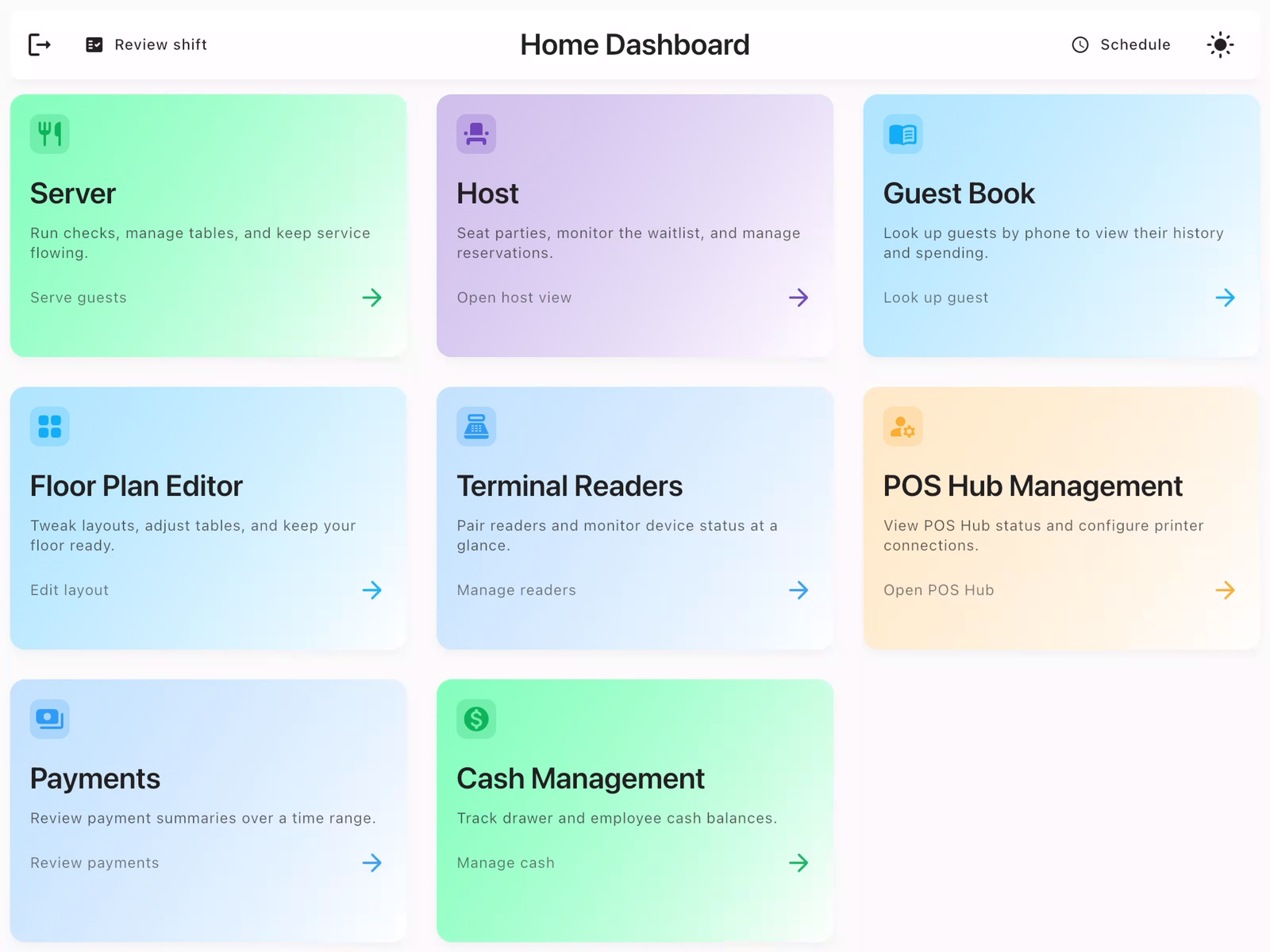
Navigate to Host View
From the Home Dashboard, tap Host to access the host station. The Host view displays your floor plan and party management tools.
View the Waitlist Tab
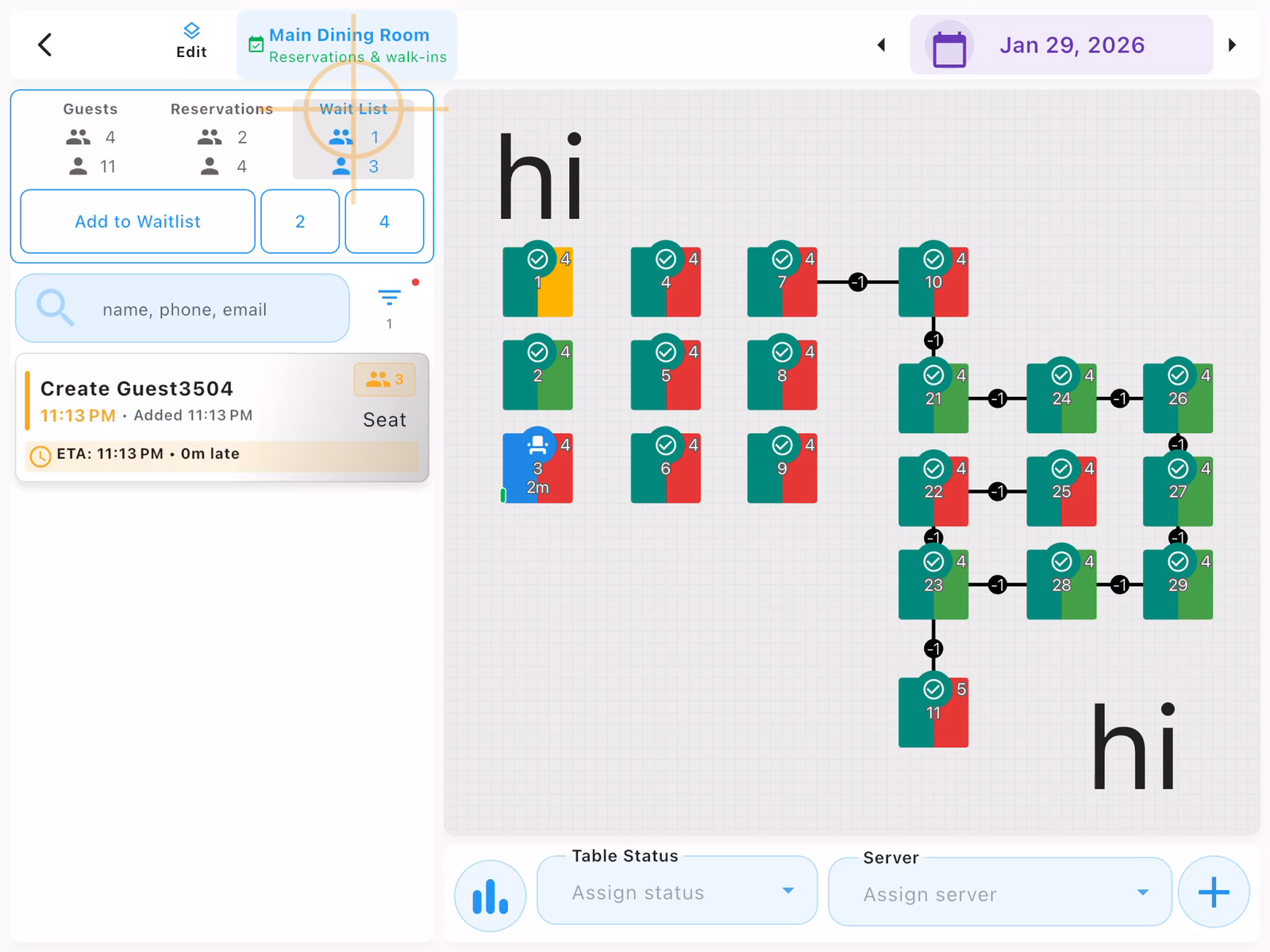
In the left panel, tap the Wait List tab to see all waiting parties. Each entry shows:
- Guest name: Name of the party
- Time added: When they joined the waitlist
- ETA: Estimated time until a table is ready
- Wait status: How long they've been waiting
Parties are sorted by their position in the queue.
Adding to and Seating from Waitlist
When a guest arrives without a reservation and no tables are available, add them to the waitlist.
Tap Add to Waitlist
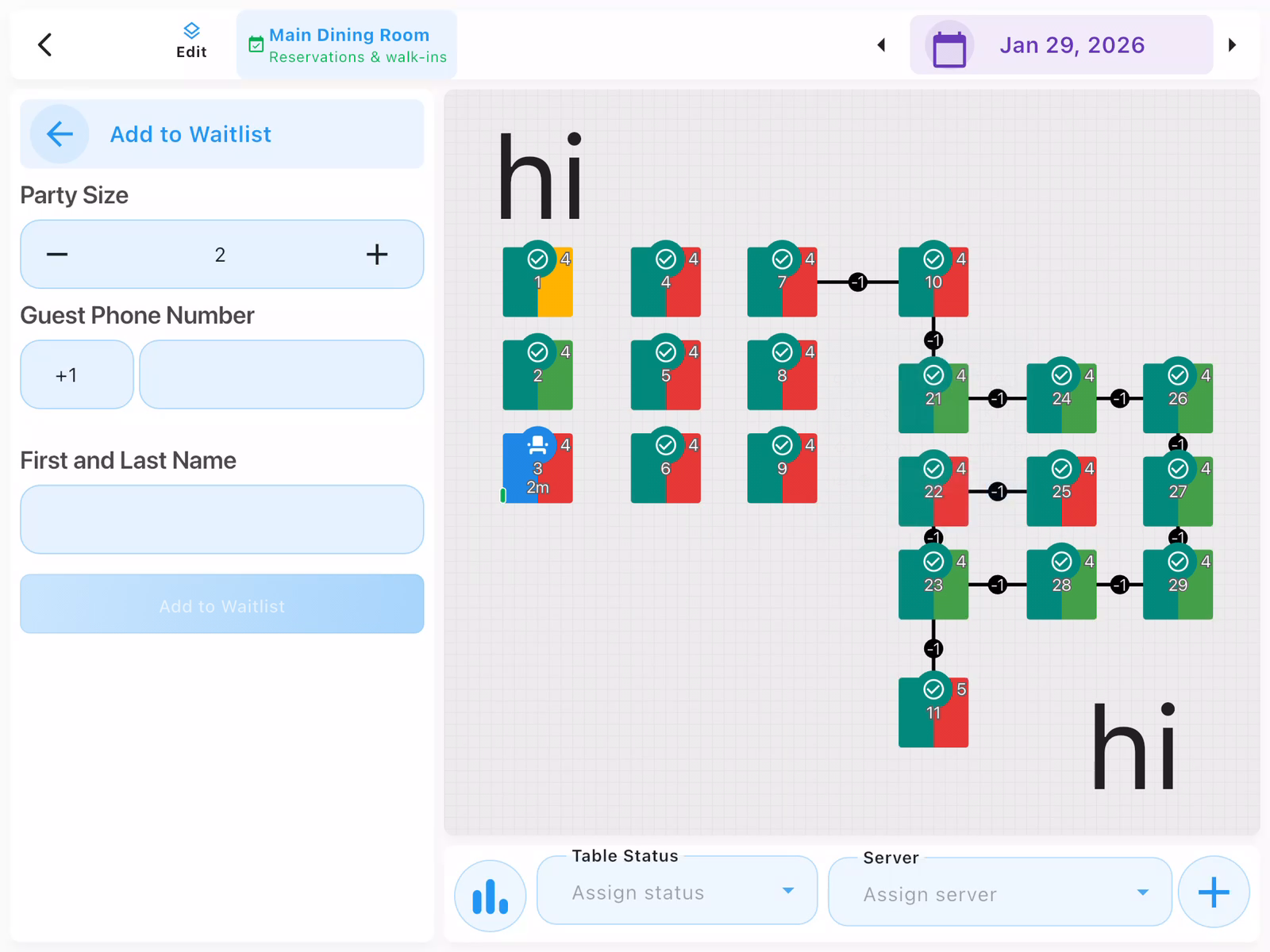
From the Wait List tab, tap Add to Waitlist to open the waitlist form. This opens the Add to Waitlist panel on the left side.
Enter Party Information
Fill in the party details:
- Party Size: Number of guests (use +/- buttons)
- Guest Phone Number: For SMS notifications when table is ready
- First and Last Name: Name to call when ready
The system automatically calculates an estimated wait time based on current table availability.
Add to Waitlist
Tap Add to Waitlist to add the party. They'll appear in the waitlist with their estimated wait time. The guest receives an SMS confirmation if a phone number was provided.
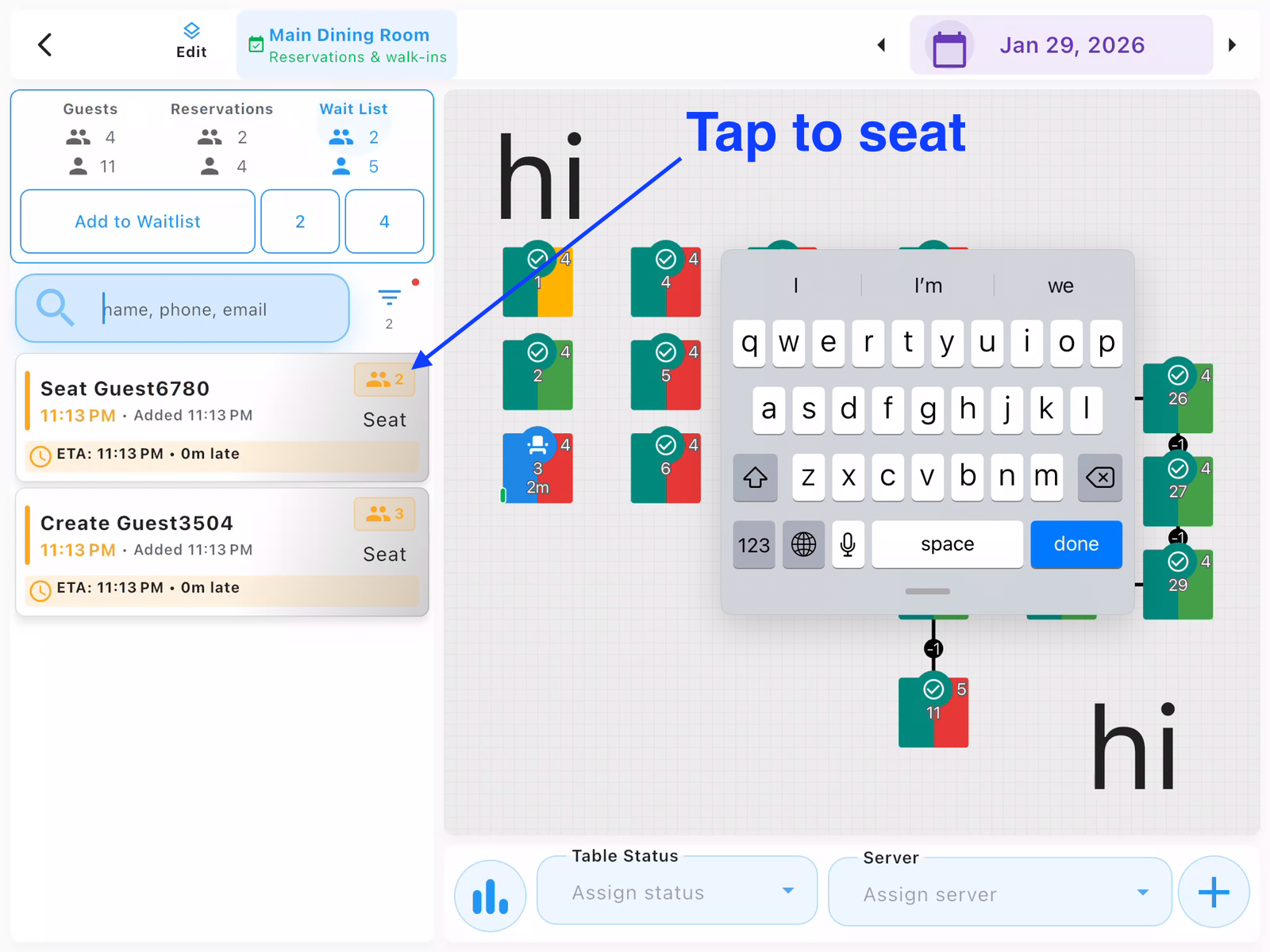
When a table is available, tap Seat on their entry to seat them.
- Guests with phone numbers receive automatic SMS updates
- ETA updates automatically as tables turn over
- You can edit party details by tapping on their entry
- To seat a waitlist party, tap their entry and select Seat
Contact us at support@chompypos.com.