Reservations
Viewing Reservations
Access and manage upcoming reservations from the Host view.
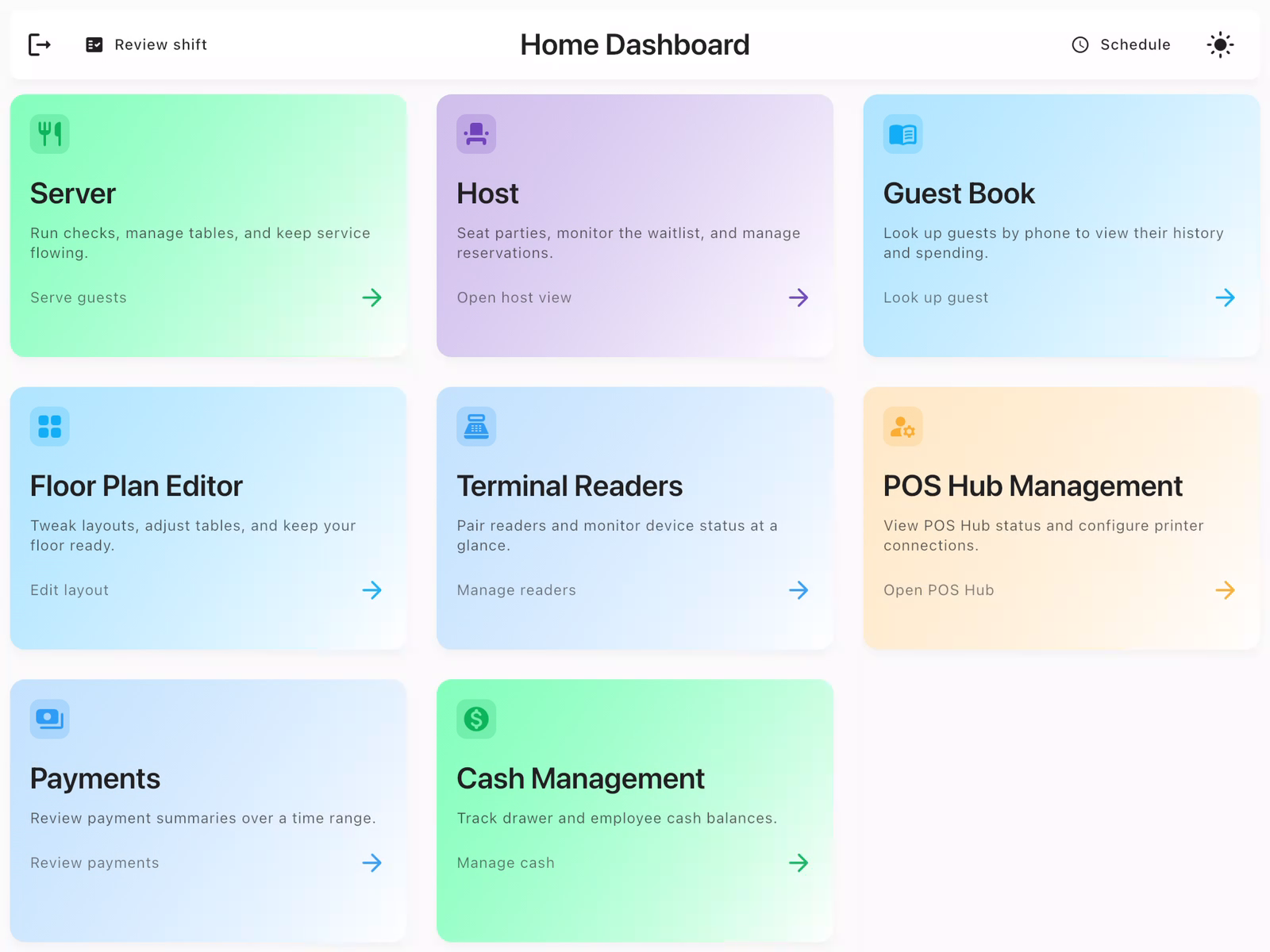
Navigate to Host View
From the Home Dashboard, tap Host to access the host station. The Host view shows your floor plan with table status and party management tools.
View the Reservations Tab
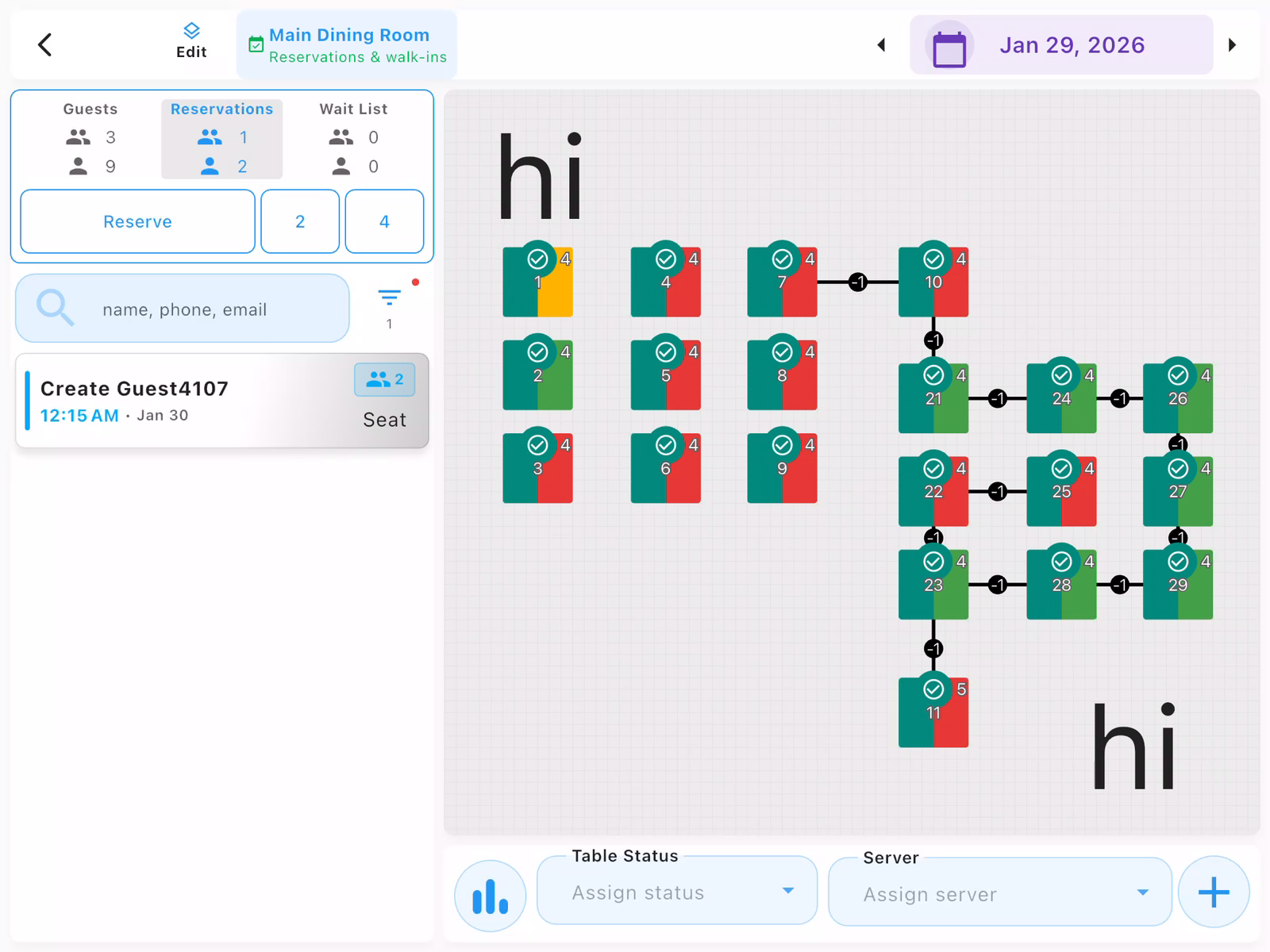
In the left panel, you'll see three tabs:
- Guests: Walk-in parties ready to seat
- Reservations: Upcoming reservations
- Wait List: Parties waiting for a table
Tap Reservations to see all upcoming reservations. Each entry shows the guest name, reservation time, and party size.
Creating Reservations
Create a new reservation when a guest calls or books online.
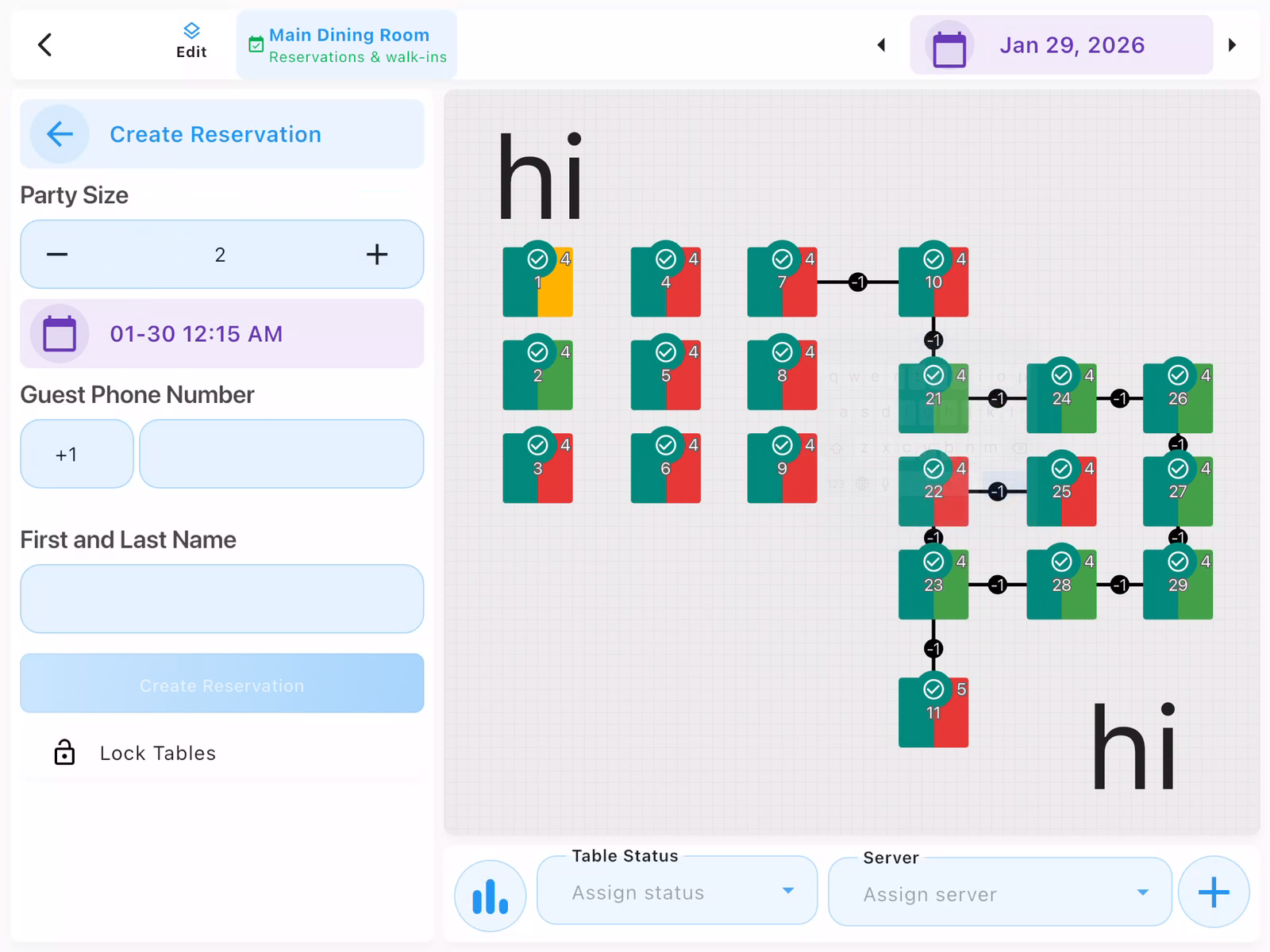
Tap Reserve
From the Reservations tab, tap the Reserve button to open the reservation form. This opens the Create Reservation panel on the left side.
Enter Reservation Details
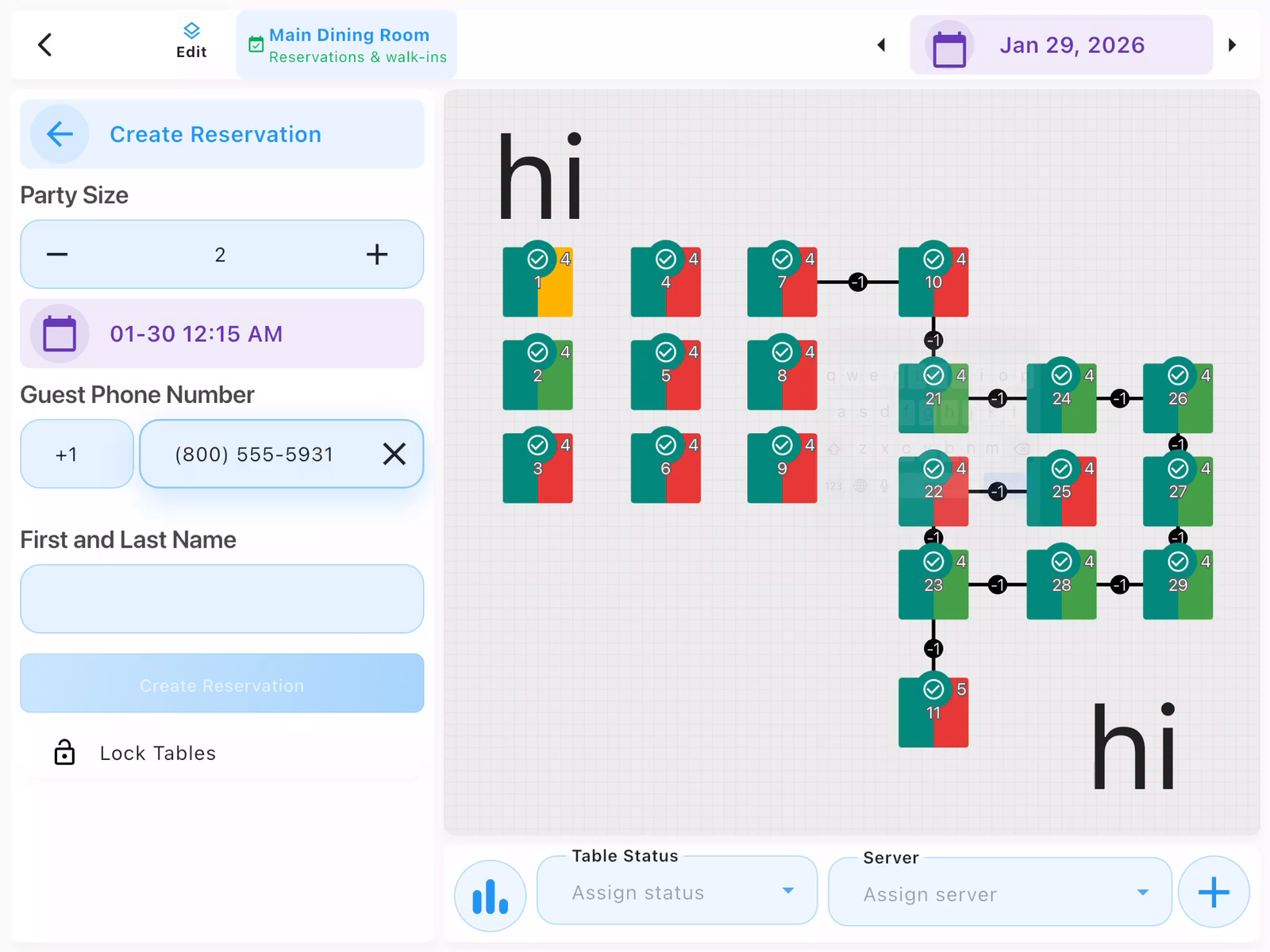
Fill in the reservation information:
- Party Size: Number of guests (use +/- buttons)
- Date/Time: Tap to select reservation date and time
- Guest Phone Number: Enter the guest's phone
- First and Last Name: Guest's name for the reservation
- Lock Tables: Optionally reserve specific tables
Confirm the Reservation
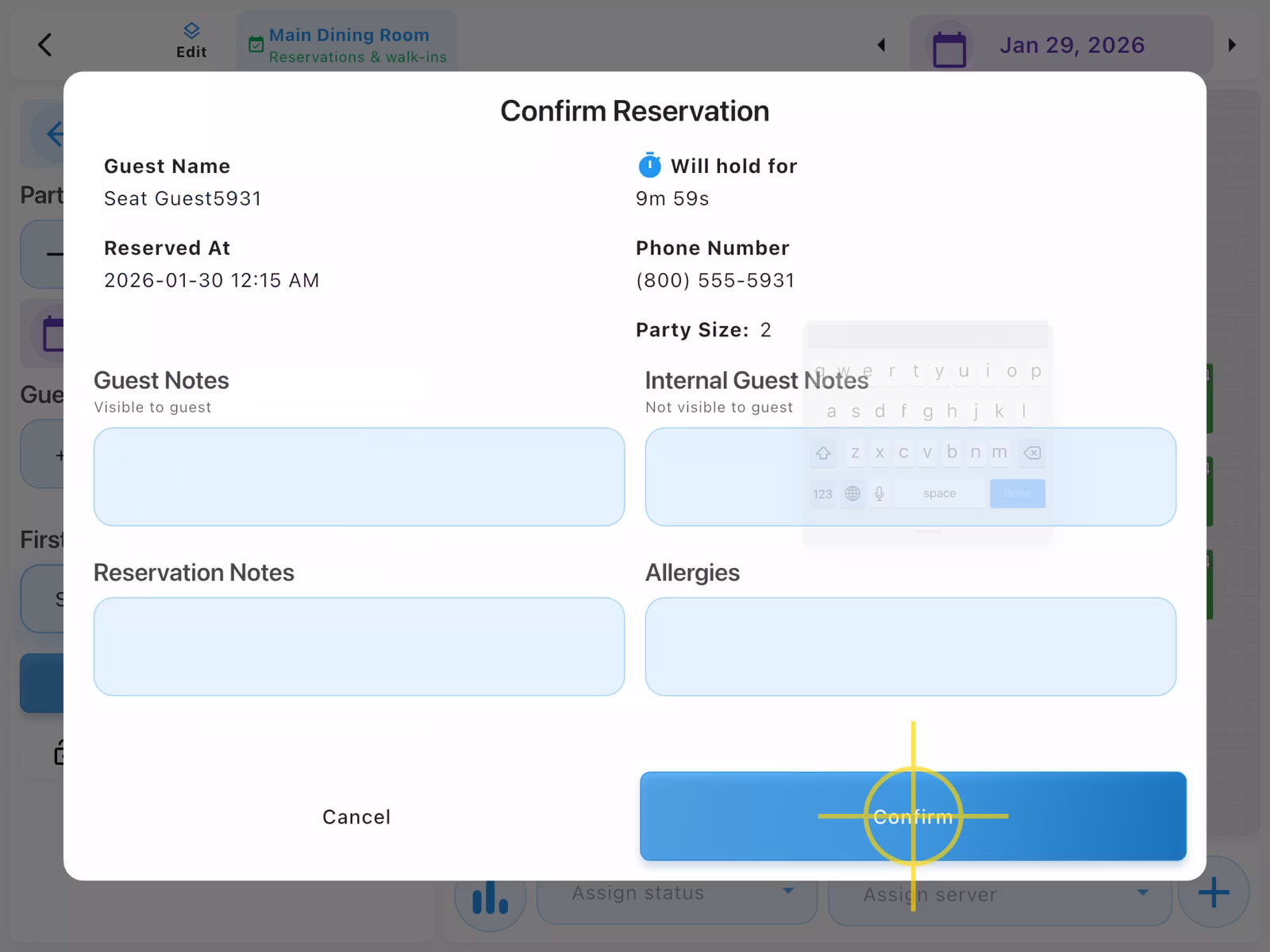
Review the reservation details in the confirmation dialog:
- Guest Name: Name for the reservation
- Reserved At: Date and time
- Phone Number: Contact number
- Party Size: Number of guests
- Will hold for: Time remaining to complete this reservation before the slot is released (finish within 10 minutes)
You can also add notes:
- Guest Notes: Visible to the guest
- Internal Guest Notes: Staff only
- Reservation Notes: Specific to this visit
- Allergies: Important dietary information
Tap Confirm to create the reservation.
- Reservations appear in the list sorted by time
- Guest phone numbers are used for SMS notifications
- Lock specific tables for large parties or special requests
Seating Reservations
When a reservation arrives, seat them at an available table.
Select the Reservation
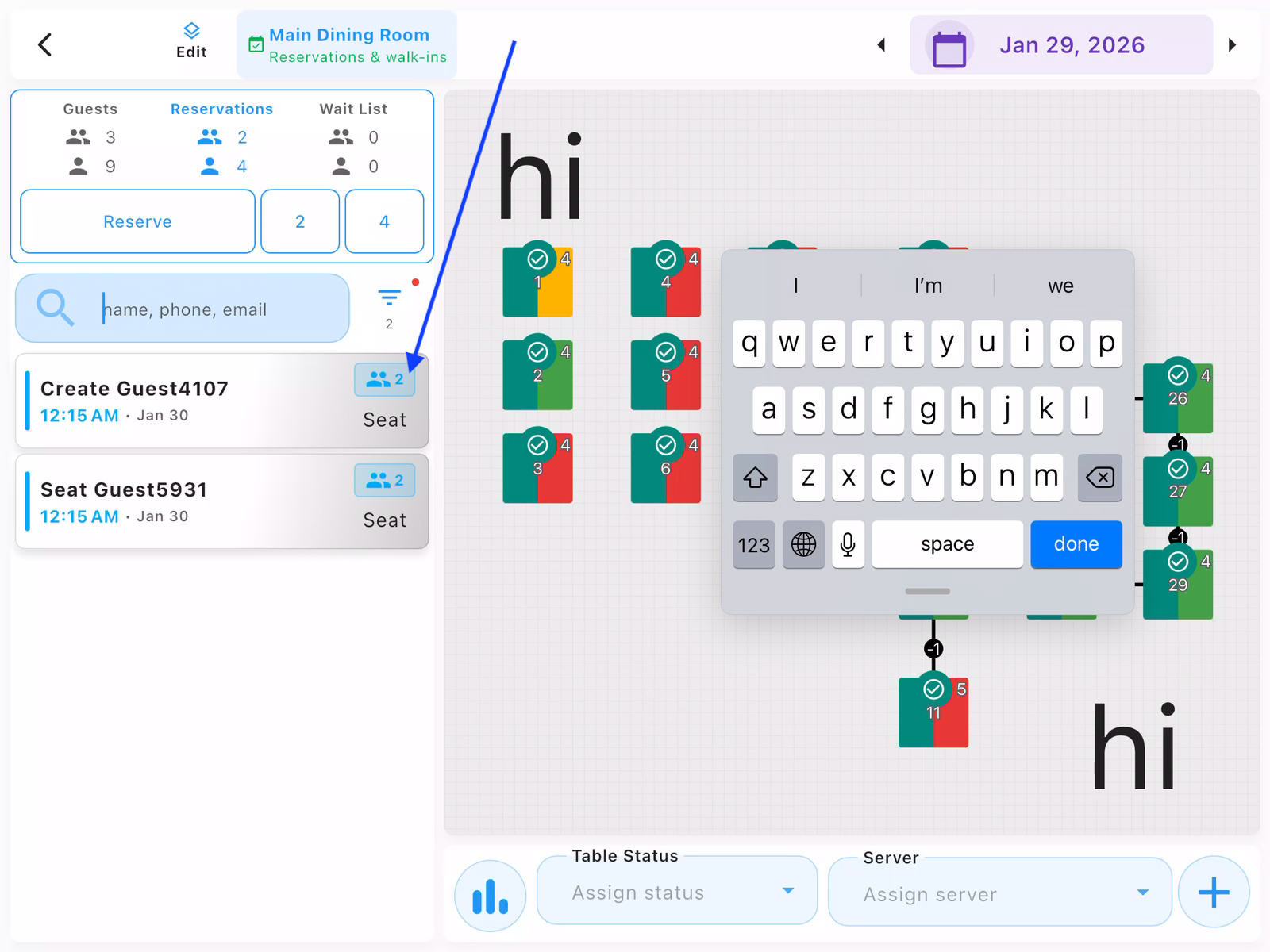
When the party arrives, find their reservation in the list and tap Seat. This opens the seating panel where you can choose their table.
Choose Tables
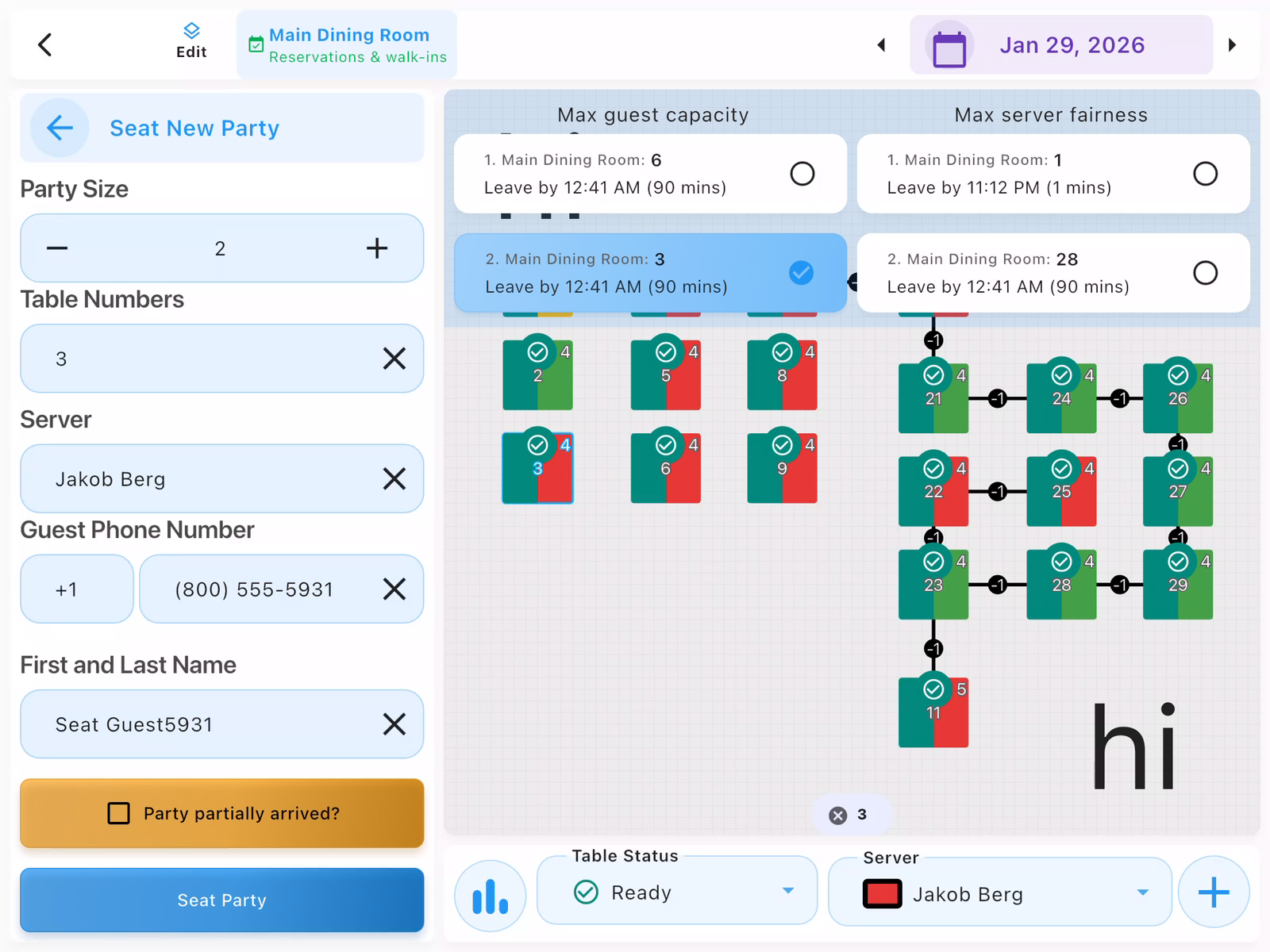
The Seat New Party panel shows:
- Party Size: Pre-filled from reservation
- Table Numbers: Select one or more tables
- Server: Assign a server
- Guest info: Phone and name pre-filled
The floor plan highlights available tables. Suggestions appear on the right showing capacity and server fairness.
Seat the Party
After selecting tables, tap Seat Party to complete seating. The table status updates on the floor plan, and a check is automatically created for the party.
If the party hasn't fully arrived, check Party partially arrived? to note this.
- Max guest capacity shows which tables can accommodate the party
- Max server fairness helps balance workload across servers
- You can combine multiple tables for large parties
Contact us at support@chompypos.com.