Processing Refunds
Issuing Refunds
When a guest needs a refund, you can process it from the Payments dashboard. Refunds are returned to the original payment source.
Navigate to Payments
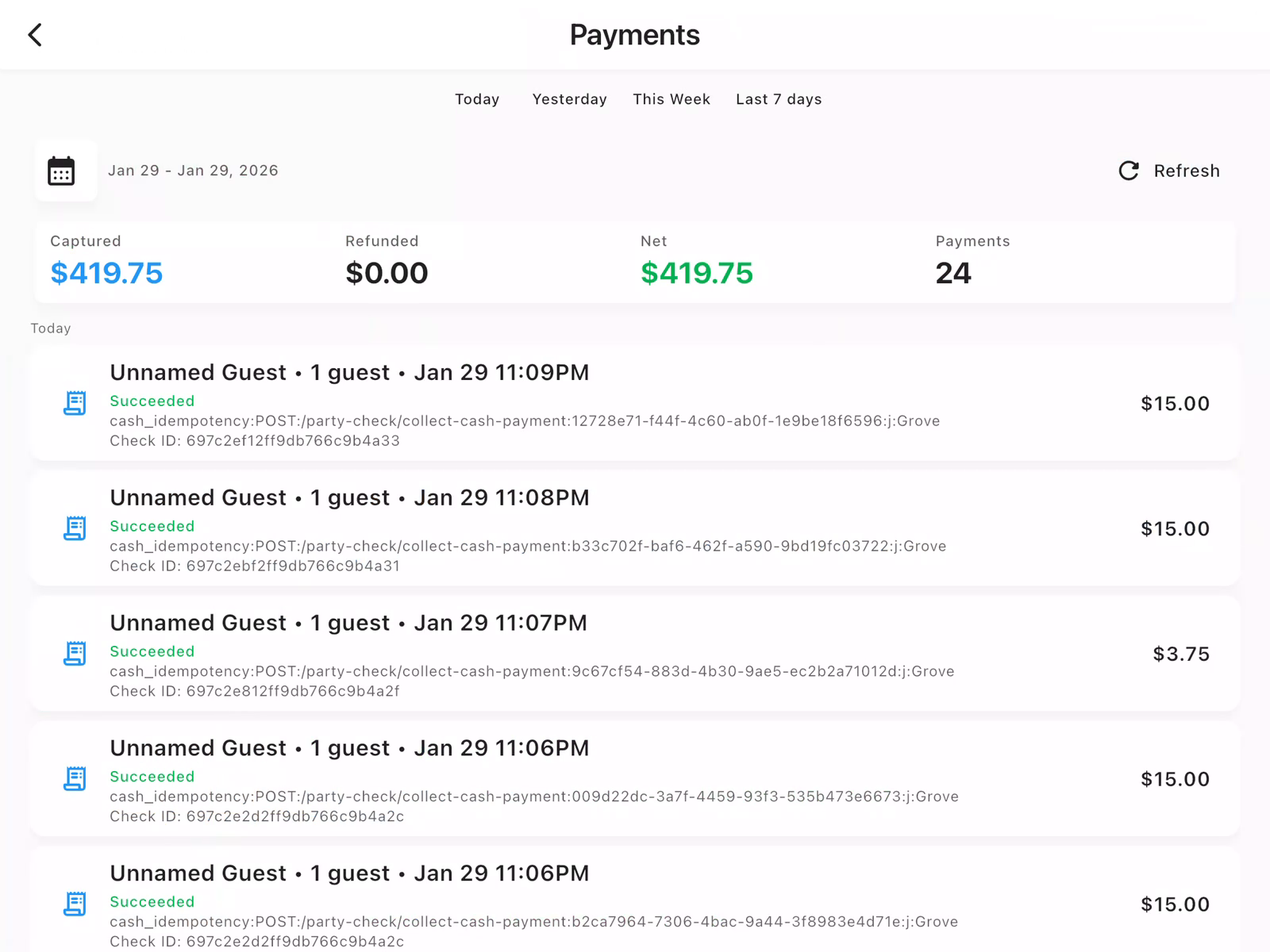
From the Home Dashboard, tap Payments to access the payments history. This shows all transactions across the restaurant.
Find the Payment
The Payments dashboard shows:
- Captured: Total payments collected
- Refunded: Total refunds issued
- Net: Net amount after refunds
- Payments: Number of transactions
Use the date filters (Today, Yesterday, This Week, Last 7 days) or tap the calendar icon to select a custom date range. Tap on the payment you need to refund.
View Payment Detail
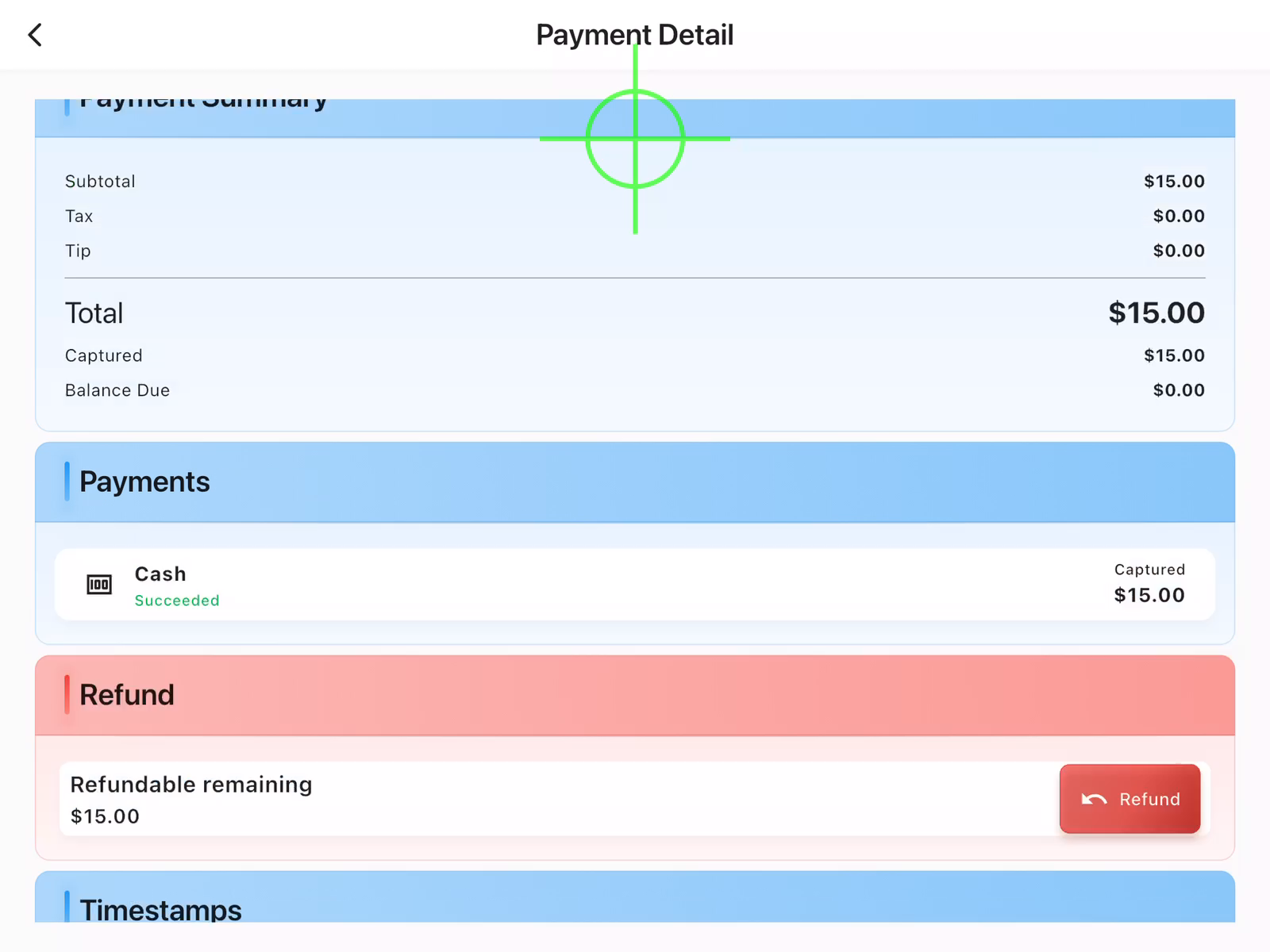
After tapping a payment row, the Payment Detail screen opens showing:
- Payment Method: How the guest paid (Cash, Card, etc.)
- Payment Summary: Subtotal, tax, tip, and total
- Payments: Payment status (Succeeded, Captured)
- Refund: Refundable remaining amount with Refund button
Issue the Refund
In the Refund section, you'll see the refundable amount. Tap the Refund button to process the refund. The refund is returned to the original payment source.
After confirming:
- The refund is processed immediately
- Your employee balance is reduced by the refund amount
- The payment shows as refunded in the system
Important Notes
- Refunds are returned to the original payment source
- Refunds require manager approval
- All refunds are tracked for reporting and accountability
- You can issue partial refunds by entering a specific amount
Need Help?
Contact us at support@chompypos.com.
Contact us at support@chompypos.com.